
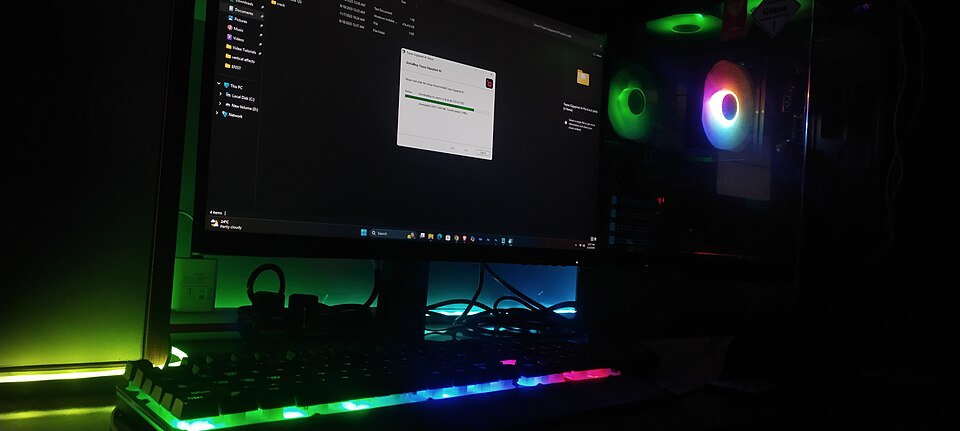
Live wallpapers look great, but they do use system resources. Understanding how DesktopHut affects performance helps you enjoy animated backgrounds without slowing down games, video editing, or everyday work. This guide explains the main factors in plain terms: frame rate, graphics load, processor use, and battery life, plus the settings that matter most.
The good news is that most modern computers handle live wallpapers easily. The difference between a smooth experience and a sluggish one usually comes down to choosing the right scene and the right settings for your hardware, not to the idea of live wallpapers itself.
What FPS Means for Wallpapers
FPS, or frames per second, measures how often the wallpaper image updates. A video at 30 FPS updates thirty times per second, which looks smooth to most eyes. At 60 FPS, motion looks even smoother, but the graphics card works roughly twice as hard. For a background you mostly see out of the corner of your eye, 30 FPS is usually plenty.
DesktopHut lets you limit frame rate, and this is the single most effective performance control. Dropping a demanding wallpaper from 60 to 30 FPS can cut graphics load significantly while barely changing how it looks behind windows. If you notice fans spinning up, try this setting first before changing anything else.
GPU and CPU Load Explained
Video-based wallpapers mainly use the graphics card to decode and display frames, with modest processor use. Real-time animated scenes, which draw graphics frame by frame, can use more of both, depending on their complexity. Simple scenes with slow motion use very little; detailed 3D-like scenes use more.
On a desktop with a dedicated graphics card, even detailed wallpapers rarely cause problems. On a laptop with integrated graphics, the same wallpaper shares resources with everything else, so the effect is more noticeable. This does not mean laptops cannot use live wallpapers; it means laptop users should favor simpler scenes and lower frame rates.
How Pausing Helps
DesktopHut is designed to pause or reduce wallpaper playback when a full-screen application runs. This matters for games and video editing, where every bit of graphics power counts. When you switch back to the desktop, playback resumes. This automatic behavior is why most gamers can keep a live wallpaper without hurting game performance, as long as the pause setting is enabled.
Battery Life on Laptops
On battery power, any extra graphics work shortens battery life. A live wallpaper will use more battery than a static image, though the difference varies widely. A simple, low-frame-rate scene might cost only a small amount, while a detailed, high-frame-rate scene costs more.
Practical steps help a lot. Use a simpler wallpaper when unplugged, lower the frame rate, and let the app pause playback when the screen is covered by maximized windows. Some users keep a calm static-style scene for battery mode and switch to richer animations when plugged in. That habit gives the best of both worlds.
Settings That Make the Biggest Difference
Four settings matter most. First, frame rate limit, as discussed. Second, wallpaper quality or resolution: a scene rendered at your screen’s native resolution looks best, but rendering above it wastes power. Third, pause behavior for full-screen and maximized apps. Fourth, sound: scenes with audio use a little extra processing, so muting sound you do not need helps slightly.
Change one setting at a time and observe for a day. Changing everything at once makes it hard to know what helped. If fans stay quiet and apps stay responsive, your settings are right for your machine.
When to Choose a Lighter Wallpaper
Choose a lighter wallpaper when you notice stuttering in other apps, when fans run loudly at idle, or when battery life drops sharply. Signs are easy to spot: windows lag when dragged, videos stutter, or the laptop feels warm while doing little. Switching to a slow nature loop or a minimal abstract scene usually resolves these symptoms immediately.
Older hardware deserves honesty. A ten-year-old laptop can still enjoy live wallpapers, but it should stick to the lightest scenes. There is no shame in that; a gentle animated gradient can look just as refined as a complex scene, and it will run far more smoothly.
Measuring the Impact Yourself
You do not need to guess how a wallpaper affects your computer; Windows includes tools that show the answer. Open Task Manager, look at the graphics and processor columns, and watch the numbers with the wallpaper running and with it paused. The difference tells you the real cost on your machine, which is more useful than any general claim. Test under realistic conditions, with your usual apps open, rather than on an empty desktop. A wallpaper that uses two percent of graphics power during browsing is negligible, while one that uses twenty percent during a video call deserves a settings change. Repeat the check after driver updates or major Windows updates, since performance characteristics can shift. Keeping a simple note of your favorite scenes and their rough resource use helps you choose quickly later. Measurement turns wallpaper performance from a worry into a known quantity, and known quantities are easy to manage.
Final Thoughts
Performance with DesktopHut is about matching the wallpaper to the machine and the moment. Limit frame rate, let playback pause for full-screen apps, and choose simpler scenes on laptops or older hardware. With those habits, animated backgrounds stay a pleasure rather than a burden. If you want to experiment, the library at desktophut.org offers scenes across the full range from feather-light to richly detailed, so you can find the right balance for your own setup.


